
Deploy HCL Notes 11.0.1 FP1 for Citrix VDI Quickly and Easily

Deploying Notes on virtual desktops (or VDI) is a great way to achieve a smoother performance and a better user and admin experience for older versions of the software. During the Collabsphere 2020 conference Chris Adler from Panagenda presented how to deploy the latest version of HCL Notes 11.0.1 FP1 for Citrix/VDI.
In the case used for this presentation virtual environments meant: VDI – Virtual Desktop Infrastructure like VMWare Horizon View or Citrix XenDesktop or TS – Terminal Services / Server like Citrix XenApp.
One of the common issues that is encountered is aged Notes installations in virtual environments that are working up to a point.
-
mostly Notes data directories on network drives which cause:
-
long startup times of HCL Notes
-
hangs and wait times due to interruptions and poor network latency
-
high network traffic as HCL Notes is constantly reading / writing data
-
frequently corrupted local applications
-
permanently occupied disk space on file servers / SAN / NAS (at least 120 MB per user, often because of old and outdated files, even templates).
Having the data directories on network drives is not recommended because there are so many things between running the Notes Client; a lot of files are accessed at the same time and so when combining it to network stability you get a bunch of crashes on the Notes side. The best way to go is having the data directly forwarded on the server.
What is the best path?
-
In virtual environments HCL Notes can be optimized to start up fast, run smooth and contribute to a positive end user IT experience by:
-
switching to local Multi-user installations
-
frequently maintaining contents of HCL Notes data folders
-
relieving network, file servers and/or SAN/NAS systems
-
encouraging administrators to spend a little more time of troubleshooting and analyzing HCL Notes in order to solve root causes not symptoms.
Roaming
The data folder does not need to be located on a network drive or network share but locally on the server, on the virtual installation (VI server, Citrix server).
-
Given the previous reasons why HCL Notes in virtual environments should not have any files in the network, the following questions arise
-
How can personal HCL Notes data folders of end users be maintained locally on the virtual environment servers? Think of having N servers in the farm where personal end user data potentially needs to be on every single server
-
How do end users get their most recent HCL Notes configuration no matter on which server in the farm they log on?
-
How to ensure that disk space used by HCL Notes data folders is cleared after log off?
-
How to avoid transfers of large HCL Notes data folders per user during log on and log off which increase wait times and cause network traffic?
-
Roaming will solve this
-
To provide end users with their latest HCL Notes configuration, their data needs to be roamed onto the server they log on to start their session
-
Roaming can be achieved through own procedures (e.g. logon script), Domino Roaming or third-party solutions.
Roaming will also help you avoid transfers of large HCL Notes data folders per user during log on and log off which increases wait times and causes network traffic. In order to give end users their latest HCL Notes configuration, their data needs to be roamed into the server they log on to start their session. You can achieve Roaming through your own procedures, like using a logon script, Domino Roaming or third-party solutions.
Here is an overview of roaming:
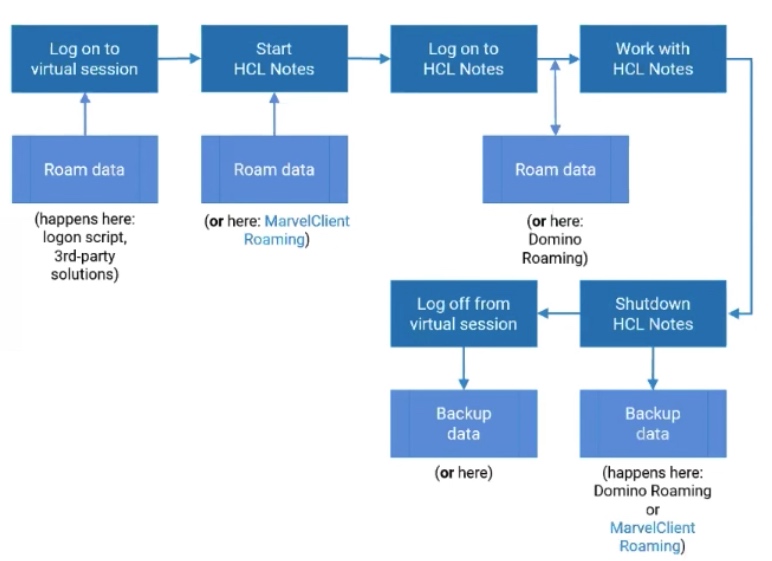
A few basic things to keep in mind:
-
Use HCL’s default paths
-
Program directory C:\Program Files(x86)\HCL\Notes
-
Shared data directory C:\ProgramData\HCL\Notes\Data\shared
-
Data directory C:\Users<USERNAME>\AppData\Local\HCL\Notes\Data
-
MultiUser install only -> Very important! It’s the only supported way on terminal services for instance.
-
User Install parameter “CITRIX=1” (at least if TS is involved)
-
No need to make changes to the MSI package (scripts can help here)
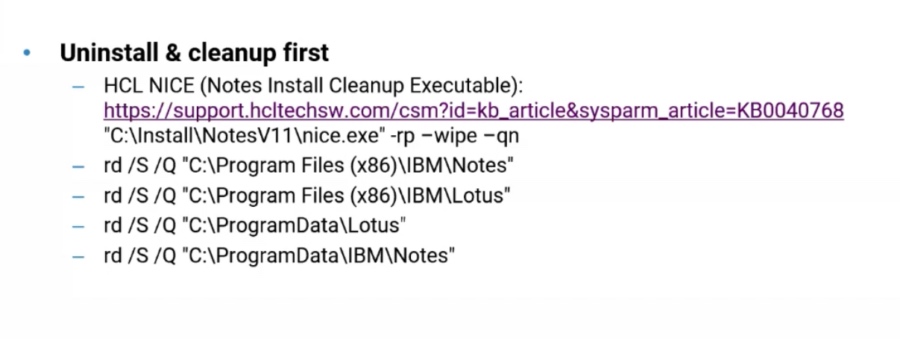
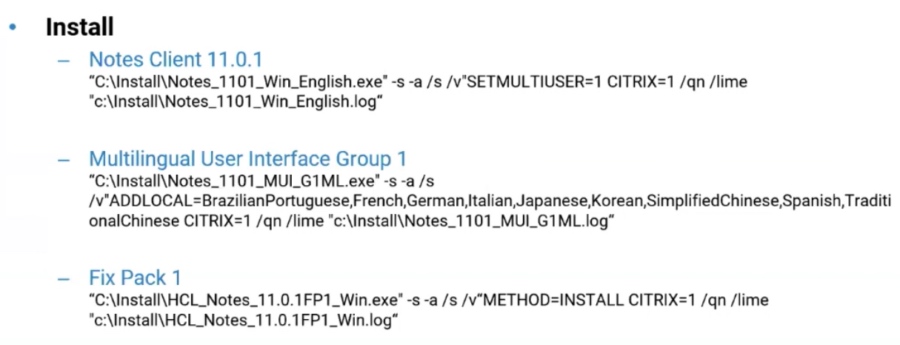
Command Lines:
Upgrading directly can make your life hard, so first make sure you’ve uninstalled Notes and that the Notes folder is nice and clean.
Next comes the Install component as you expect.
After you’ve installed Notes, the next step is ODS53
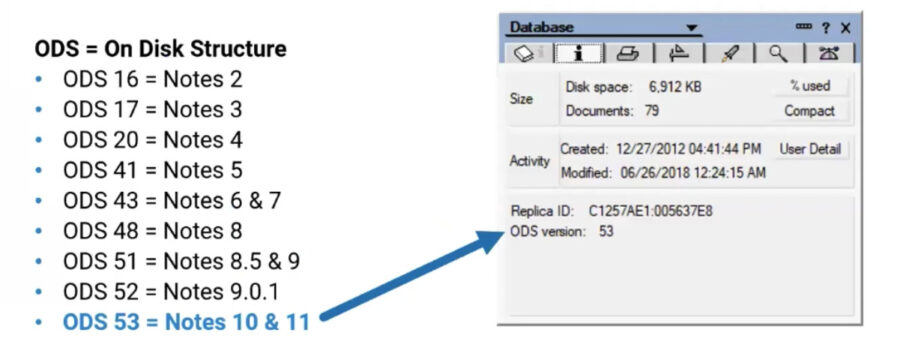
Note: the newer the ODS the better structure quality you will have for the database.The difference between ODS 43 and 53 is up to 80% less file I/O.
To upgrade the ODS of all shared templates in a virtual HCL Notes Multi-User installation you can follow these steps (includes ODS 53 for new databases created by the user)
-
Add the following line to the shared notes.ini in %ProgramData%\HCL\Notes\Data
-
CREATE_R10_DATABASES=1
-
Make sure that the Administrator account used to log on to the virtual server does not have a personal HCL Notes Data directory yet (in %LocalAppData%)
-
From a command prompt type the following commands
-
cd ”%ProgramData%\HCL\Notes\Data\Shared”
-
“%ProgramFiles(x86)%\HCL\Notes\ncompact.exe” -C -ODS-*
The next step for a smooth and great installation is taking care of Notes.ini
A properly configured shared notes.ini can be essential for smooth running virtual HCL Notes environments. The shared notes.ini is used by every HCL Notes client session for which there is no personal HCL Notes data folder yet. It’s located in %ProgramData%\HCL\Notes\Data.
It is used as a template / stub notes.ini out of which all parameters are transferred into a users personal notes.ini upon the very first HCL Notes start.
Here are some additional things you can do when it comes to Notes.ini.
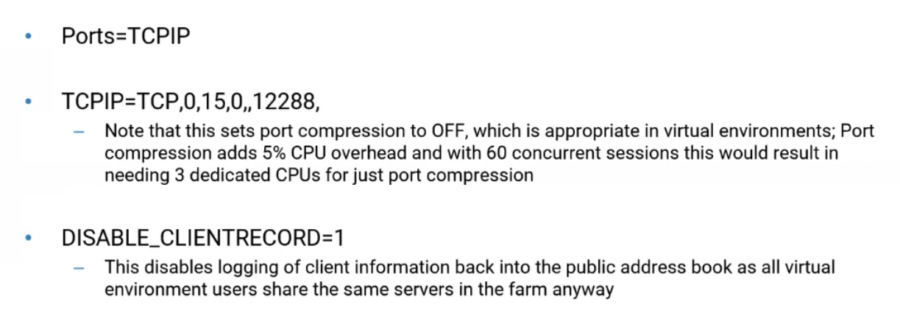
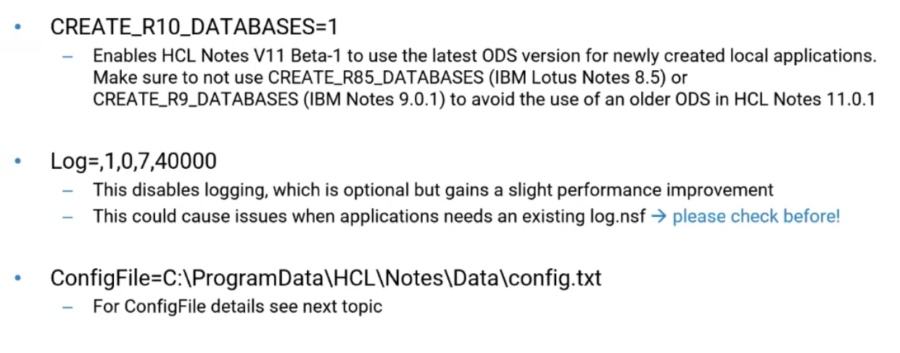
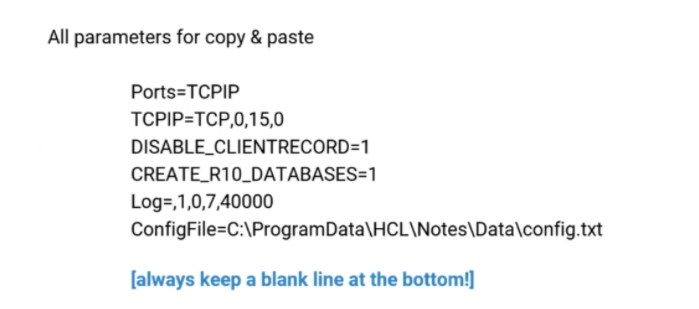
The blank line at the bottom is useful because the last line will be ignored so make sure you have that line in place to avoid headaches.
Your content goes here. Edit or remove this text inline or in the module Content settings. You can also style every aspect of this content in the module Design settings and even apply custom CSS to this text in the module Advanced settings.
Config File
You can set up HCL Notes without attendance using the ConfigFile, often referred to as config.txt or setup.txt.
This file has to be referenced in the shared notes.ini with the parameter ConfigFile=Drive: or UNC\folder\filename.txt. You can find more info on how to create a ConfigFile here .
ShareClasses Improvement
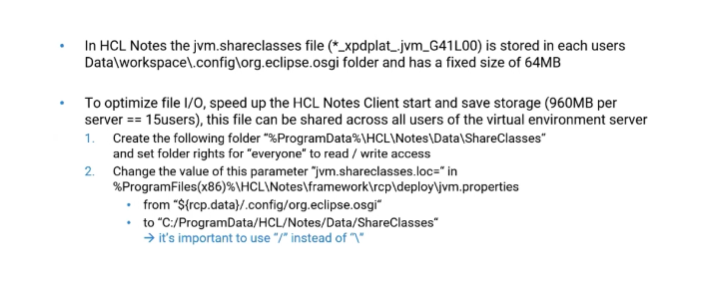
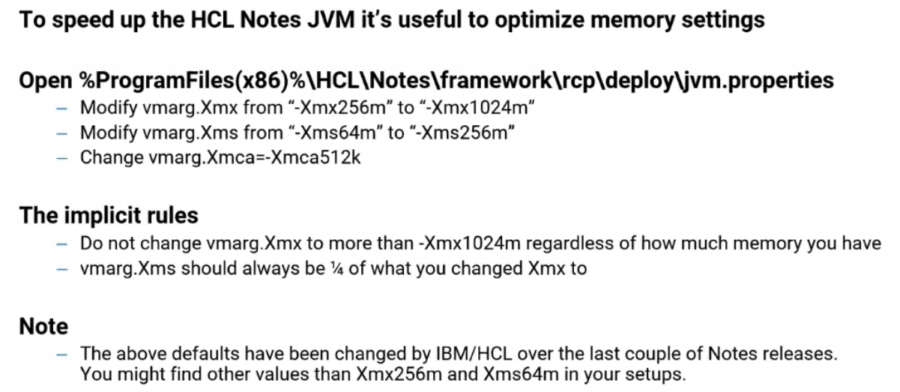
HCL Notes 11.0.1 FP1 – jmv.properties file
Workspace Improvement
-
Every HCL Notes Client start in a virtual environment is a first (setup) start and takes aprox. 20 secs on avarage
-
About 65%-75% of time during first starts is used to build the workspace folder (at least 13 secs)
-
A typical new workspace folder (HCL Notes 11.0.1 FP1) consists of
-
220 files
-
160 folders
-
85MB (including 64MB *xpdplat.jvm_G41L00 file)
-
Building the workspace folder causes lots of file I/O
-
You must recreate the workspace folder when your Installation changes (another Notes version, Fix Pack, etc.)
-
If you want to include the workspace folder to your installation package, you also must include the following file:
-
C:\Program Files (x86)\HCL\Notes\framework\rcp\rcplauncher.properties
You can check out the recording of this great presentation here and the slides here . Feel free to reach out to us with any questions about deploying Notes or Domino applications on virtual desktops.
Filed under hcl domino