
Notes 12.0.1, Danube and beyond

If you work with Domino, you work with HCL Notes a lot, so let’s explore what’s new with it and what is yet to come with the drop of HCL Domino Danube.
What’s New In V12.0
Search Center
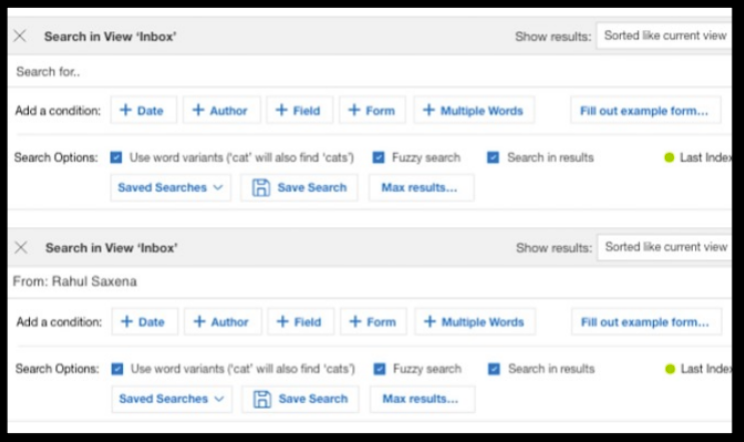
HCL Notes v12.0 brings a new and improved Search Center. You get a search history to quickly execute a previous search and you are also able to quickly search on recently used Notes applications.
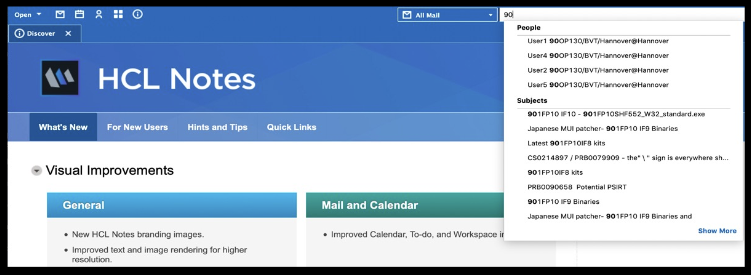
The “Search this view” section has also been improved. You are now able to search on people and subjects faster. Also, ShowSearchThisViewTypeahead=0 will disable the dropdown.
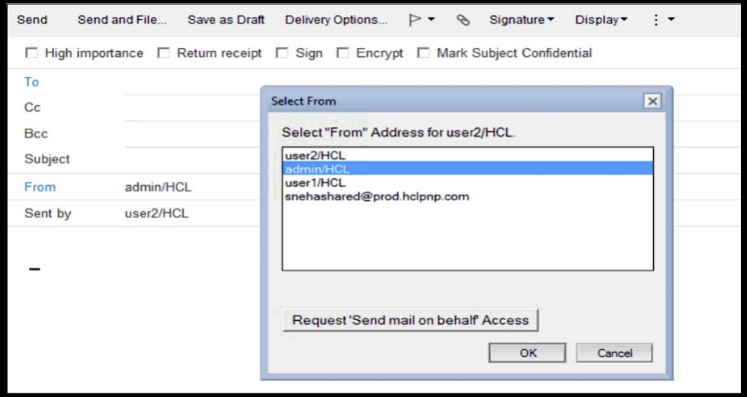
Alternate From
With HCL Notes V12.0 you have the option of selecting alternate from in Mail-In database.
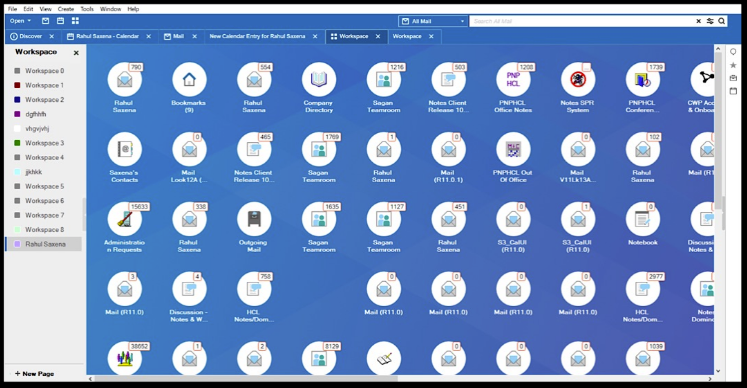
Workspace
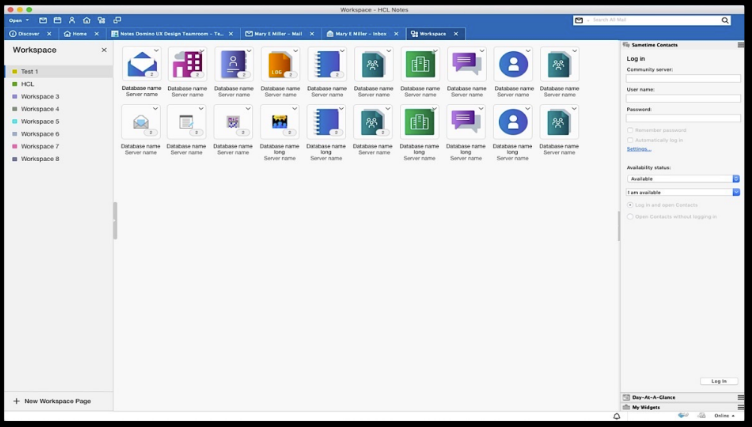
The Workspace got an upgrade in HCL Notes V12.0.
Improved Import
The Import tool has some improvements of its own.
-
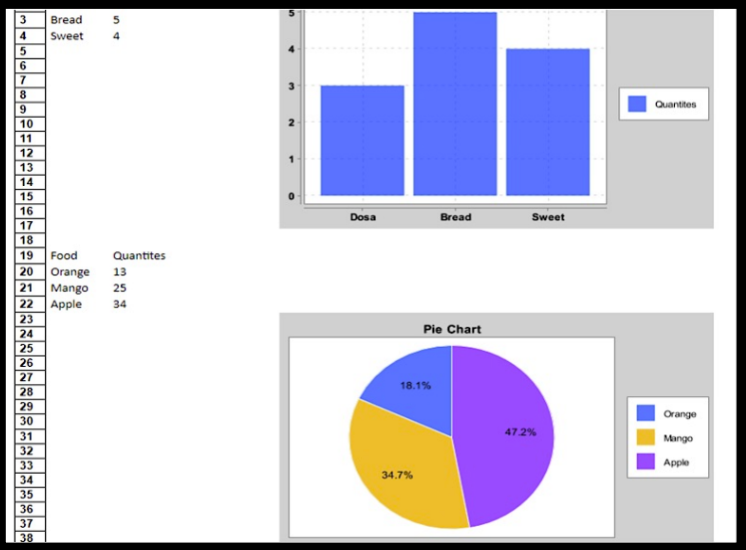
Excel files with embedded charts can be imported with no fidelity loss
-
Word documents with embedded charts imported with good fidelity
-
PowerPoint slides imported with high fidelity
Install Improvements
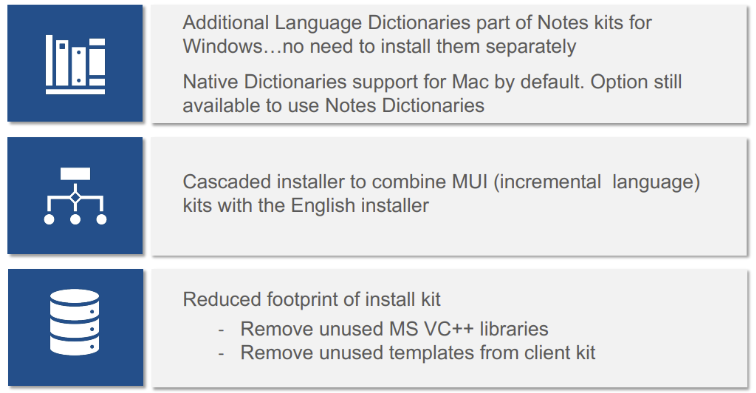
Apart from these changes that come in handy, HCL has included some Install improvements to HCL Notes V12.0.
Performance Improvements

What’s new in HCL Notes V12.0.1
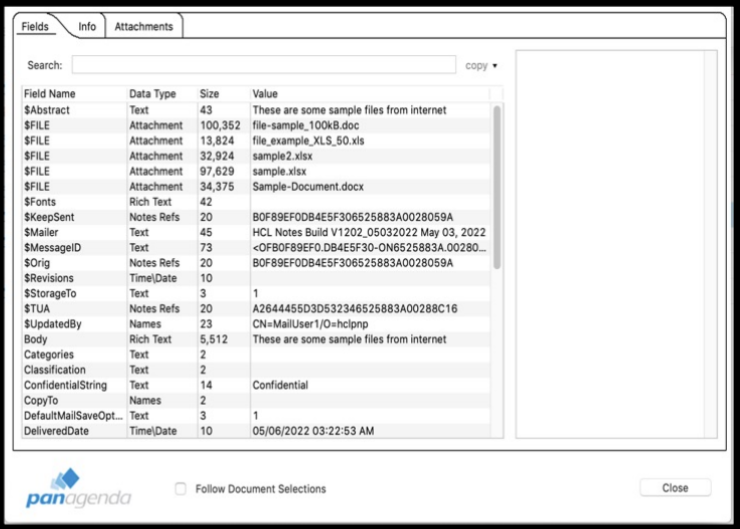
Resizable Advanced Property Dialog
-
Resizable scrolling list
-
Able to quickly search on properties
-
Ability to export the list
-
Ability to compare properties from two different documents
Policy For JVM Parameters
-
A new desktop policy to modify JVM settings
-
Preserves customizations on upgrades
-
Example Notes.ini:
-
– WCT_vmarg.Xmx=-Xmx512m
-
– WCT_vmarg.Xmca…
-
– WCT_vmarg.Xms…
Online Meeting Integration
Dynamic Meeting Services
-
By default, five different services are offered for online meeting integration
-
For Sametime Meetings, this ini needs to be set DOMI_ST_ROOTURL=
. -
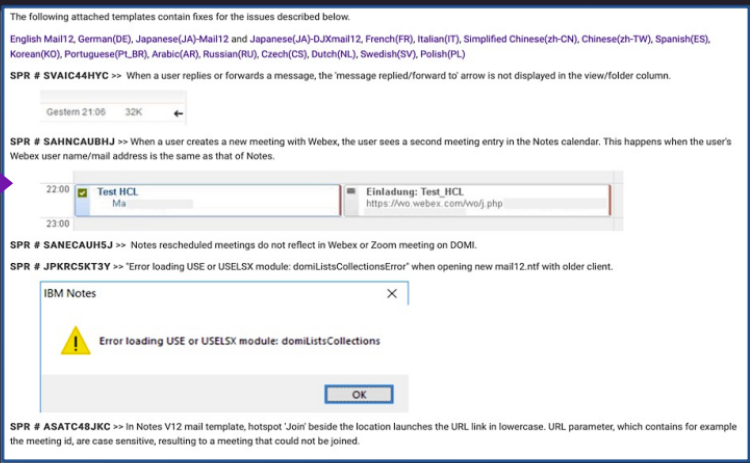
The latest 12.0.1 mail template is available here .
Mail Template Fixes
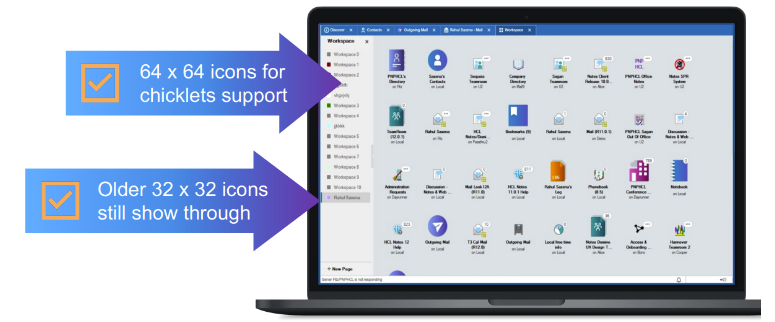
Workspace Icon Support
What’s Next in HCL Notes Danube
Online Meetings – Improvements
-
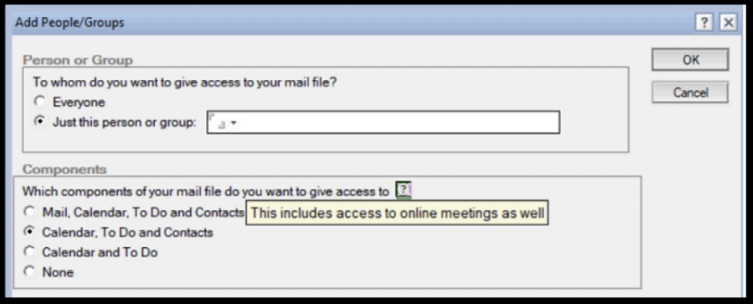
Allows delegates to setup online meetings with all the services like Webex, Zoom, Teams, Sametime and GoTo Meetings
-
Robust support for Repeat meetings with online meetings
-
Integrates dial-in numbers and passwords automatically from the services
64-bit Client Support
-
64-bit Notes Standard and All Client kits will be supported from Danube onwards
-
Apart from English, 9 other languages (Group 1) will be supported. Full language kits as well as MUI kits will be released for these Group 1 languages
-
32-bit kits will be also made available as before and no changes of support for 32-bit client kits are planned
ODS Upgrade
-
Automatically upgrade all NSF dbs in the data folder to the latest default ODS version of Danube client (55)
-
This will upgrade them unconditionally by default regardless of other INIs enabled.
-
The above behavior can be turned off through setting NSF_AlwaysUpgradeODS=0
-
This will provide faster performance for the client and still be compatible to older versions on the server
Workspace
General Improvements
-
Improved support for Chinese/Japanese Fonts (automatic recognition of unsupported characters in the font)
-
Accelerator to deselect all (ctrl-shift-a to deselect)
-
Improved support for HTML rendering (out-of-box improvements by default) \
-
“Invite Others” now supports external invitees
-
Override preference for default mail signature
-
Prompt free SAML upgrade (no dialogs when upgraded for SAML)
-
Policy setting for default font (MailEditorFontAsDefault=fontname,fontsize)
-
Policy to disable GroupByDate (GroupByDate = 0 disables the feature)
-
MS Edge support for embedded browser in Basic.
If you are new in your journey with HCL Notes and require assistance, just drop us a line and we are more than happy to help.
Filed under hcl domino