
Deploying IBM Verse On-Premises: IBM Webinar Recap

We have talked extensively about Domino 10 and its capabilities. Now it’s time to approach Verse as well.
IBM’s latest webinar had approached the issue of deploying Verse. You might wonder why would you need to deploy Verse on Premises? Well, mostly because it gives you a great user experience, comes with a nicer interface than iNotes and you need no Notes client.
So, you decided to deploy Verse what now? Well, as you would expect you need to make sure you set some downtime aside for the mail server. Make sure you have backed up all the mail files, and Festina Lente (Hurry slow).
Next, you need to make sure that the requirements are met and tested. You can find them here (https://www-01.ibm.com/support/docview.wss?uid=ibm10737121)
Once you have ensured that these pre-reqs are in order, it’s time to start with the installation and configuration.
Installation
-
Create CredStore
-
Close the Domino server
-
Copy the files on
-
Edit the notes.ini
-
Start the Domino server
Configuration
-
Replace iNotes redirector
-
Mail file template update
-
Compact mail files
-
Full text indexes
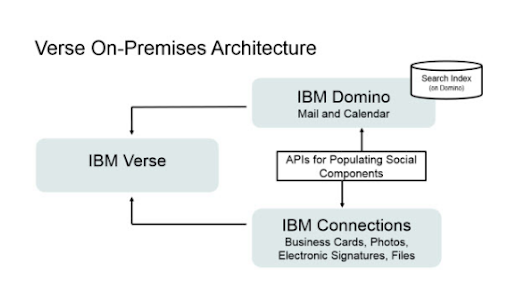
Let’s dive into the specifics of the integrations. Number one on the list, integration with Connections:
-
Connections Requirements: Connections 6 or 5.5 CR2
-
The internet mail address must match the address used in the Connections profiles
-
Ensure SSl is configured for Domino and Connections and that the SSO is working
-
Configure the Connections HTTP server
-
Restart
The integrations with Docs comes with fewer steps:
-
Enable CORS and IBM Docs to allow cross origin requests
-
Add White DomainList field to
-
concord-config.json
-
viewer-config.json
Or
- Run the domain_list_mgr.py
Ensure that HTTPS is used
Adding Sametime:
-
Ensure iNotes / ST integration is completed
-
Make notes.ini changes in the Verse server
-
VOP_GK_sametime=1
-
VOP_GK_sametime_rich_client=1
Add to the Verse server a trusted IP in the community server config
Restart the server
Enhancing with Box was designed to be as simple as possible:
-
create a new app at developer.box.com
-
add the client ID to the notes.ini on the Verse server VOP_BOX_CLIENT_ID=client_id
-
Restart the server
As we already mentioned, the testing is as important as the install. Make sure you deploy on a test box. Run up a VM in your domain, test the deployment, make sure the at the SSL is enabled and you should be ok. If you need to do this on a live machine make sure to create a new mail file for testing.
Now that you have Verse up and running you might wonder how you can make it better. Well, Verse can be extended in a number of ways, from which we would mention:
-
Extend the Navigation Bar
-
Brand Verse UI
-
Add cascading menu and submenus
-
Add or Delete links
-
Customize the Verse UI
-
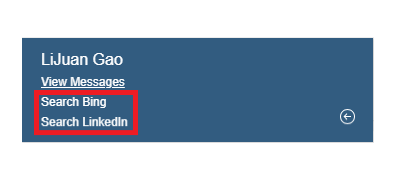
Add a link to the Business Card
-
Add an Action when…
-
Reading a Mail
-
Composing a Mail
-
Hook into Mail Send Action
-
Provide a Custom Name Picker
-
Enable Live Text – recognize text patterns and act upon them
-
Enable Third-Party Chat / Meeting Integration
-
Enable Third-Party File Repository Integration
-
Hook into the Directory Search action
Let’s go a bit in depth with those, shall we?
Extending the Navigation Bar
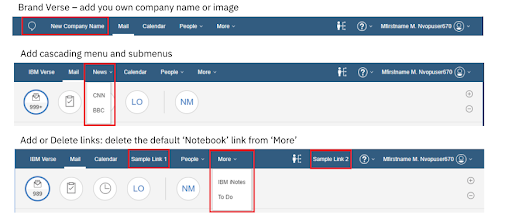
Customize Verse’s UI with CSS. You can change colors or change for the Compose to to be an image.
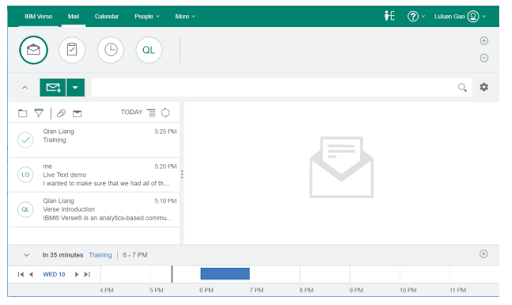
Add a link to the Business Card: the extension has access to data in the business card that can be used in the link.
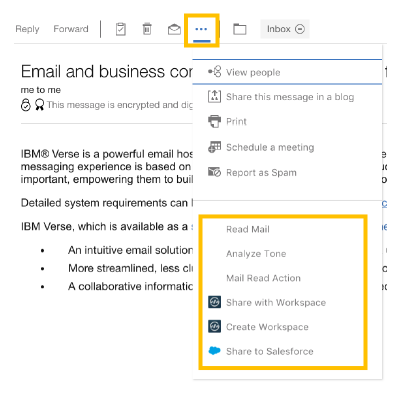
Add an action when Reading a Mail
-
The extension has access to many different pieces of data in the email
-
Body, subject, recipients,…
-
Example: We may need some assistance when reading mail: Read mail to you e.g. using Watson Text to Speech. Share to another service e.g. Watson Workspace, Salesforce,…
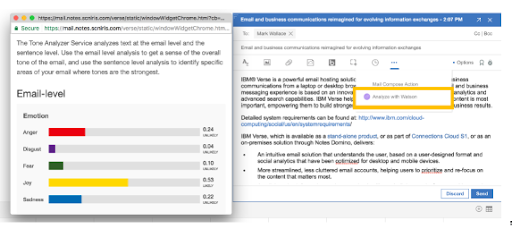
Add an action when Composing a Mail
-
The extension has access to many different pieces of data in the email
-
Body, subject, recipients,…
-
Example: We may need help when composing a mail e.g: Analyse the tone of the mail using Watson Tone Analyzer
Hook into the Mail Send Action
-
This extension allows you to prevent the email from being sent.
-
Some companies have policies around data privacy such as what data should not be included in email (credit card data, account numbers or otherv sensitive information).
-
Display photos of people who you are mailing to avoid sending to the wrong person.
Custom Name Picker
-
Allows a developer to create a name picker and insert it into the Verse UI
-
Appears when you click the To: action
-
Example: Flexible and rich UI to help user to select recipient(s)
-
Example: Integrate with an external directory
-
Example: Suggest user to send the mail to based on the email content e.g. a customer account number
Live Text
-
Similar to Notes LIve Text feature
-
Recognize patterns of data and provide actions for that data
-
Example: recognize an address and provide an action that opens the address in a map application
-
Allows re-use of many existing Notes Live Text extensions.
Hook into the Directory Search Action
-
Allows a developer to build a custom directory search implementation and hook it into the Directory Search action
-
Example: Search using more fields e.g. job title, department name
-
Example: Integrate with an external directory

So, there are quite some things you can do with Verse, and we are excited to hear how your deployment of Verse went. If you need a hand, just let us know and Prominic will help you with the process.
Filed under business practices, hcl domino